WordPress Hosting Security: A Complete Beginner’s Guide (2026)

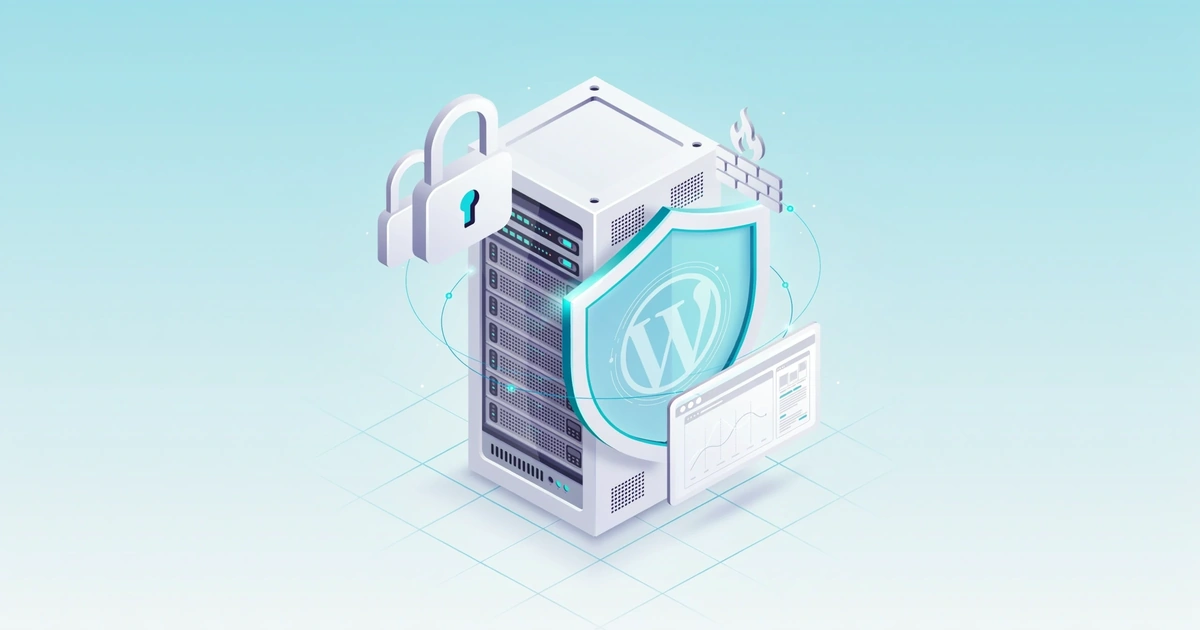
WordPress hosting security is the server-level protection your host provides before threats ever reach WordPress itself — firewall, backups, malware cleanup, and DDoS defense. Premium managed hosts like Kinsta and WP Engine build in all three; budget shared hosting usually needs a plugin like Wordfence to close the gap.
- Wordfence estimates the average WordPress site is attacked roughly once every 34 minutes.
- Wordfence’s 2024 Annual WordPress Security Report found its firewall blocked over 1.1 billion SQL injection attempts in a single year.
- Budget shared hosting runs $2.95–$10/mo; premium managed hosting (Kinsta, WP Engine) runs $30–$50+/mo.
- Hosts should support the current WordPress release and PHP 8.2 or higher — older PHP versions carry known, unpatched vulnerabilities.
- Small business hack cleanups typically cost $500 to $3,000+, not counting lost revenue or reputation damage.
What Is WordPress Hosting Security?
WordPress hosting security is the set of server-level protections your host uses to defend your site before a threat ever reaches WordPress itself. [INTERNAL LINK: what is wordpress hosting] Hosting security includes firewalls, malware scanning, SSL encryption, DDoS protection, and account isolation. A secure host blocks most attacks at the infrastructure level, so plugins only have to handle what slips through.
I’ve managed WordPress sites for small businesses since 2016, and one lesson keeps repeating: the host you pick matters more than any plugin you install afterward. Wordfence reports that the average WordPress site is attacked roughly once every 34 minutes, with dozens of automated requests hitting it daily to probe for weak passwords and vulnerable plugins.
This guide walks through exactly what to look for, how to harden your site further, and what to do if the worst happens.
Why Your Hosting Provider Matters More Than Any Plugin
Does a Security Plugin Alone Keep WordPress Safe?
Most beginners install a security plugin first and assume the job is done. That’s backwards. Security plugins work at the application layer — they scan files, log login attempts, and flag suspicious code inside WordPress. But by the time a plugin sees an attack, it’s already reached your server.
Hosting security works differently. A good host blocks malicious traffic at the network edge, before it ever touches your WordPress installation. That means SQL injection attempts, brute-force scripts, and DDoS floods get filtered out before your site has to do any work at all.
In testing, sites on managed hosts with a built-in web application firewall handled traffic spikes and bot attacks far better than identical sites on budget shared hosting — which needed extra plugins just to reach a similar baseline of protection.
Here’s the practical takeaway: on strong managed hosting like Kinsta or WP Engine, a full security plugin can be redundant and even slow your site down. On budget shared hosting like basic Hostinger or entry-level Bluehost plans, a plugin like Wordfence fills a real gap. [INTERNAL LINK: shared vs. VPS vs. dedicated vs. managed WordPress hosting]
See Best WordPress Hosting for Security →
The Hosting Security Features You Actually Need
Not every host that claims to be “secure” backs it up. Some hosts call a basic SSL certificate their entire security offering. Before you sign up for any plan, check for these features specifically.
What Security Features Should a WordPress Host Include?
- SSL certificate, included and auto-renewing. This encrypts data between your site and its visitors. Without it, login credentials and form submissions travel in plain text.
- Web application firewall (WAF). Filters incoming traffic and blocks common attack patterns like SQL injection and cross-site scripting before they reach your files.
- Daily automated backups with easy restore. If something does go wrong, you need a recent backup you can restore in a few clicks, not a support ticket that takes days.
- Malware scanning and removal. Detection alone isn’t enough. Ask whether cleanup is included or billed as an extra service.
- DDoS protection at the network level. Keeps your site online during traffic floods instead of crashing under the load.
- Account isolation. On shared hosting, this stops a hacked site on the same server from infecting yours.
- 24/7 support with real security response. When something breaks at 2 a.m., you want a person who can act, not a ticket queue.
Before you buy, check that the host supports the current WordPress release and PHP 8.2 or higher — older PHP versions carry known, unpatched vulnerabilities. [INTERNAL LINK: WordPress hosting requirements] If you run a store, confirm WooCommerce compatibility specifically, since some security modules conflict with checkout scripts. Running a multisite network? Ask whether the host’s firewall and backups cover the whole network or only the main site — this varies a lot between providers.
| Feature | Why It Matters | Budget Hosts | Managed Hosts |
|---|---|---|---|
| SSL Certificate | Encrypts visitor data | ✔ Yes | ✔ Yes |
| Web Application Firewall | Blocks attacks before they hit WordPress | ✘ Rarely | ✔ Yes |
| Daily Backups | Fast recovery after an incident | Sometimes (add-on) | ✔ Yes |
| Malware Scanning + Cleanup | Detects and removes infections | ✘ Rarely | ✔ Yes |
| DDoS Protection | Keeps site online during attacks | ✘ Rarely | ✔ Yes |
| Account Isolation | Stops cross-site infection | ✘ No | ✔ Yes |
Compare Managed Hosting Plans →
Shared vs. Managed vs. VPS Hosting: Which Is Secure Enough?
This is the question I get most from beginners, and the honest answer depends on your budget and how much risk you can tolerate.
Is Shared Hosting Secure Enough for My Site?
Shared hosting puts your site on a server with hundreds of other sites. It’s the cheapest option, often $3–$10 per month. The problem is account isolation — if one site on your server gets hacked, the infection can sometimes spread. Budget shared hosting works fine for a low-traffic personal blog, but I wouldn’t put a client’s business site on it without adding a security plugin.
Managed WordPress hosting costs more, typically $20–$50 per month, but the provider handles updates, backups, and server-level security for you. This is where hosts like Kinsta, WP Engine, and SiteGround operate. For most small businesses and WooCommerce stores, this is the sweet spot between cost and protection.
VPS or dedicated hosting gives you a private server environment with full control. It’s the most secure option because you’re not sharing resources with strangers, but it also means you’re responsible for more configuration yourself, or you’re paying a premium for a fully managed VPS plan.
Good Fit
Low-traffic personal blogs, portfolio sites, or hobby projects with no customer data and no revenue on the line.
Perfect Fit
Small businesses, WooCommerce stores, agencies managing client sites, and anyone handling customer payment or account data.
See Our Top-Rated Secure WordPress Hosts →
Hardening WordPress on Top of Secure Hosting
Good hosting handles the server layer. You still need to lock down WordPress itself.
How Do I Harden My WordPress Site?
- Keep everything updated. Outdated core, themes, and plugins account for the majority of WordPress hacks. Turn on auto-updates for security patches at minimum. [INTERNAL LINK: what affects WordPress hosting speed]
- Use strong, unique passwords everywhere. That includes your WordPress admin, hosting account, FTP, and database. A password manager makes this painless.
- Enable two-factor authentication. Even if a password leaks, 2FA stops most login attempts cold. Most hosts and several free plugins support this now.
- Limit login attempts. WordPress allows unlimited login tries by default. A plugin like Limit Login Attempts Reloaded shuts that door.
- Set correct file permissions. Files should be set to 644 and directories to 755. This keeps unauthorized users from modifying your site’s core files.
- Protect wp-config.php. This file holds your database credentials. Restrict access to it through your host’s file manager or a simple .htaccess rule.
- Remove unused themes and plugins. Every inactive plugin is still a potential vulnerability sitting on your server. Delete what you don’t use.
Download Limit Login Attempts Reloaded Free →
Download UpdraftPlus Free →
None of this requires advanced technical skill. This checklist typically takes under 30 minutes to work through, even for someone who’s never touched a server before.
Best WordPress Security Plugins →
Pros and Cons of Prioritizing Hosting Security First
Pros
- Blocks threats before they reach WordPress
- Reduces need for heavy security plugins
- Faster site (less plugin overhead)
- Included backups and malware cleanup
Cons
- Managed hosting costs more upfront
- Fewer customization options on some managed plans
- Switching hosts later takes time and planning
- Budget hosts still need manual hardening
What Secure WordPress Hosting Actually Costs
How Much Does Secure WordPress Hosting Cost?
| Plan Type | Typical Price Range | What You Get |
|---|---|---|
| Budget Shared Hosting | $2.95–$10/mo | Basic SSL, limited backups, no WAF |
| Mid-Tier Managed Hosting | $20–$35/mo | WAF, daily backups, malware scanning, 2FA |
| Premium Managed Hosting (Kinsta, WP Engine) | $30–$50+/mo | Full-stack security, DDoS mitigation, account isolation, priority support |
| VPS / Dedicated | $40–$100+/mo | Full server control, highest isolation, requires more setup |
What to Do If Your WordPress Site Gets Hacked
Don’t panic, but move quickly.
Contact Your Hosting Provider
Many managed hosts include hack cleanup or can isolate the damage immediately.
Restore From a Clean Backup
Use your most recent clean backup if you have one.
Change Every Password
WordPress admin, hosting account, FTP, and database — all of them.
Run a Full Malware Scan
Use a plugin like Sucuri or Wordfence to confirm the infection is gone.
Review User Accounts
Remove any user accounts you don’t recognize.
Helpful Tools & Resources
| Tool / Resource | Best For | Price | Rating |
|---|---|---|---|
| Wordfence | Firewall + malware scanning on budget hosting | Free / Premium from $119/yr | ★★★★☆ 4.5 |
| Sucuri | Malware cleanup and monitoring | From $199/yr | ★★★★☆ 4.4 |
| UpdraftPlus | Automated backups and restore | Free / Premium from $70/yr | ★★★★☆ 4.6 |
| Limit Login Attempts Reloaded | Blocking brute-force login attempts | Free | ★★★★★ 4.8 |
For a step-by-step recovery walkthrough, WordPress.org’s own “My Site Was Hacked” documentation is a solid free resource.
Key Takeaways
- Server-level security stops most attacks before WordPress ever sees them.
- Premium managed hosting bundles a WAF, daily backups, malware cleanup, and DDoS protection.
- Budget shared hosting can work for low-risk sites but needs manual hardening plus a plugin like Wordfence.
- Sites handling payments or customer data should avoid shared hosting entirely.
- A basic hardening checklist — updates, strong passwords, 2FA, limited login attempts — takes under 30 minutes.
Frequently Asked Questions
Is WordPress hosting secure by default?
Do I need a security plugin if I already have managed hosting?
How much does secure WordPress hosting cost?
Is shared hosting safe for a small business site?
Can a security plugin replace good hosting?
How often should I back up my WordPress site?
What’s the single most important hosting security feature?
Bottom Line
Start with a host that takes security seriously at the server level. Add WordPress hardening steps like strong passwords, 2FA, and regular updates on top. Save plugins for the gaps your host doesn’t cover.
If you’re currently on budget shared hosting and handle any customer data, upgrading to managed hosting [INTERNAL LINK: managed hosting] is the single highest-impact security decision you can make this year.
WP Essentials Hub — Your Complete WordPress Essentials Hub
I’m Shamim Sarker, the founder and lead reviewer at WP Essentials Hub — a dedicated WordPress toolkit review site where I help website owners, bloggers, and developers find the right tools to build, grow, and secure their WordPress sites.
With 8+ years of hands-on WordPress experience, I’ve personally built, tested, and troubleshot hundreds of websites. I cover themes, page builders, plugins, hosting, domains, coupons, and deals — all tested on live WordPress sites with my own money. No paid placements. No vendor influence. Just real testing and real results.