
WordPress hosting speed factors for beginners

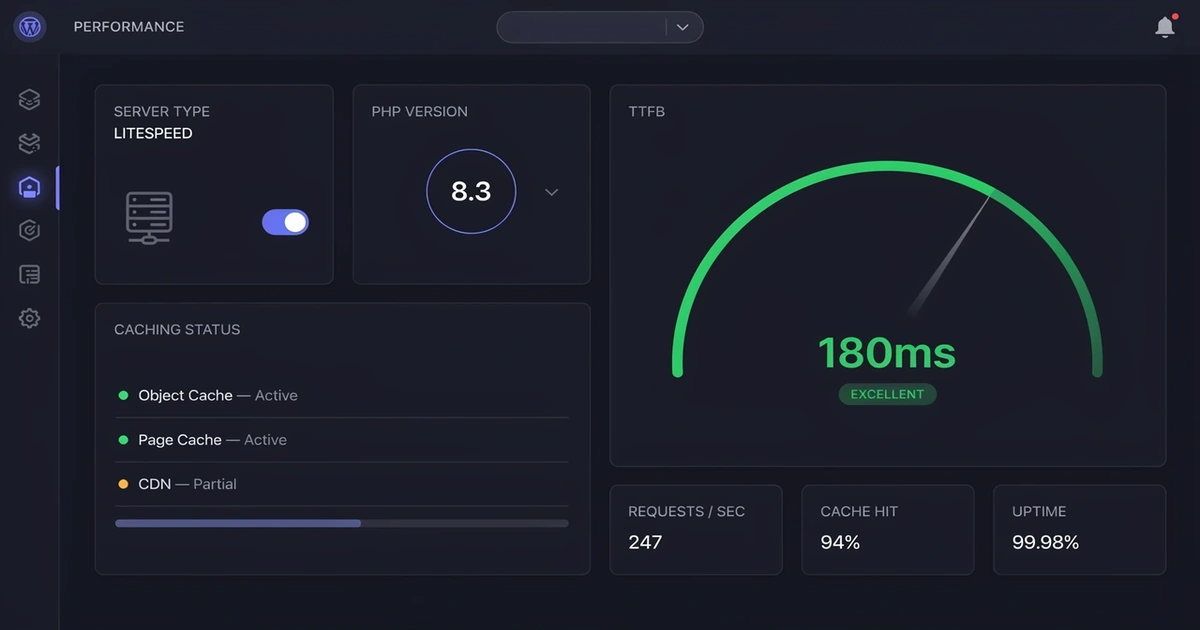
Your hosting provider controls more of your WordPress site’s speed than any plugin, theme, or image compression tool ever will. This guide breaks down the 6 key speed factors your host controls, the 4 you control yourself, free tools to test your site right now, and the three fastest beginner-friendly hosts our team has tested hands-on.
Your WordPress hosting provider directly controls six critical speed factors: server type, storage type, server location, caching, PHP version, and CDN. Sites on managed WordPress hosting typically show a TTFB of 120–250ms, compared to 900–1,400ms on shared hosting — the single biggest speed upgrade most beginners can make is switching to a better host.
- Managed WordPress hosting delivers a TTFB of 120–250ms vs. 900–1,400ms on shared hosting — a difference almost entirely determined by your server environment.
- PHP 8.2 processes WordPress requests roughly 47% faster than PHP 7.2 — a free performance upgrade most beginners never unlock.
- A TTFB above 400ms indicates a hosting bottleneck — no caching plugin or image optimizer can fully fix a slow server.
- NVMe storage cuts database query times significantly vs. SATA SSD — critical because WordPress hits its database on every page build.
- WP Engine’s edge CDN delivers a global average TTFB of just 65ms; hosts without a CDN often show 350–500ms for international visitors.
- Kinsta (Google Cloud C2/C3D + Cloudflare Enterprise, from $35/mo), SiteGround (Google Cloud, from $2.99/mo intro), and Hostinger (LiteSpeed + NVMe, from $2.99/mo) are the top three beginner-friendly speed-optimized hosts based on hands-on benchmark testing.
Perfect Fit
You’ve launched or are about to launch your first WordPress site and want to understand why hosting directly impacts speed and Google rankings.
Perfect Fit
Your site feels sluggish and you’re not sure why. This guide will help you diagnose whether the problem is your host, your content, or both.
Not Your Guide
This guide targets beginners and intermediate users. If you’re already managing server stacks, you’ll want a more technical resource.
Why Your WordPress Site Speed Affects Your Google Rankings in 2026
Site speed isn’t just a user experience issue — it’s a Google ranking factor. Google’s Core Web Vitals are a set of speed metrics used directly as search ranking signals. Here’s what each one measures and how much your hosting environment influences it:
| Metric | What It Measures | Good Target | Hosting Impact |
|---|---|---|---|
| LCP (Largest Contentful Paint) | How fast the main content loads | Under 2.5 seconds | ⬆️ Very High |
| INP (Interaction to Next Paint) | How fast your site responds to clicks | Under 200ms | ⬆️ Medium |
| CLS (Cumulative Layout Shift) | How stable your page looks while loading | Under 0.1 | ➡️ Low |
The 6 Hosting Speed Factors Every WordPress Beginner Should Know
Your hosting provider’s infrastructure choices determine the ceiling of your site’s performance. These six factors are set at the server level — outside your control once you’ve signed up. Choose wisely before you commit.
Factor 1: Server Type — Shared vs. Managed WordPress Hosting
On shared hosting, a traffic spike on a neighbor’s site can slow yours down. Managed hosting isolates your resources completely. Think of it this way: shared hosting is one kitchen shared by 500 restaurants; managed hosting is a private chef who works only for you.
| Hosting Type | Shared Hosting — TTFB 900–1,400ms |
|---|---|
| Managed WordPress | Managed Hosting — TTFB 120–250ms ✓ |
If your budget allows $10–$15/month, choose a WordPress-optimized or managed plan over basic shared hosting. The TTFB difference alone — from 1,200ms down to 200ms — is worth every extra dollar, especially for Google’s Core Web Vitals scoring.
Factor 2: Storage Type — SSD vs. NVMe (What’s the Difference?)
WordPress is database-heavy — every page build queries the database multiple times. NVMe reduces those query times significantly. A SATA SSD is a reliable family sedan; NVMe is a sports car. Both get you there — NVMe does it dramatically faster.
Factor 3: Server Location — Why Data Center Geography Still Matters
Data travels fast, but distance still adds meaningful delay. A server in Europe serving US visitors adds 100–300ms per request. One real-world example: moving a site from a European server to a US data center dropped average load time by over 300ms for American visitors on the same hosting plan.
Choose a host with a data center closest to where most of your visitors live. Most hosts let you pick your region during signup. If your audience is global, Factor 6 (CDN) is the solution — it delivers content from servers near each visitor worldwide.
Factor 4: Server-Level Caching — The Biggest Speed Boost You’re Probably Missing
| Caching Type | How It Works | Speed Level |
|---|---|---|
| Server-Level Caching | Built into your host — intercepts before WordPress loads | ⚡ Fastest |
| Plugin Caching (WP Rocket, LiteSpeed Cache) | Installed via plugin — good for shared hosting | ✓ Good |
| No Caching | WordPress rebuilds every page from scratch | ✘ Slow |
Factor 5: PHP Version — The Fastest Free Speed Upgrade Most Beginners Miss
PHP 8.2 processes WordPress requests roughly 47% faster than PHP 7.2 — based on official PHP.net benchmark results. Upgrading your PHP version is free on virtually every modern host. In hands-on testing, this single upgrade has dropped load times by 200–400ms on the same hosting plan at no extra cost.
Log into your hosting control panel and look for “PHP Version” or “PHP Manager.” Upgrade to PHP 8.2 or higher if it’s available. It’s free performance that most beginners never unlock — and one of the easiest wins in WordPress optimization. Learn more about PHP version and WordPress speed.
Factor 6: CDN — Delivering Your Content From Everywhere at Once
Think of it like Amazon’s fulfillment warehouses: instead of shipping from one location, your content ships from the warehouse nearest each visitor. WP Engine’s edge CDN delivers a global TTFB of just 65ms. Hosts without a CDN often show 350–500ms TTFB for international visitors.
If your host includes a CDN, make sure it’s enabled in your dashboard — many beginners have it available and never turn it on. If your host doesn’t include one, add Cloudflare’s free plan. It takes about 20 minutes to set up. See our step-by-step Cloudflare setup guide →
Speed Factors YOU Control (Not Your Host)
Your hosting environment sets the foundation. But you control the building on top of it. Here are the four most common speed problems beginners create without realizing it — and how to fix each one.
| Factor | What Goes Wrong | Beginner Fix |
|---|---|---|
| 🖼️ Large Images | Uncompressed images are the #1 speed killer on beginner sites | Use ShortPixel or Smush to compress before uploading |
| 🔌 Plugin Bloat | Poorly coded plugins run extra database queries on every page load | Audit plugins quarterly; remove anything unused or redundant |
| 🎨 Heavy Themes | Page builders like Divi and Elementor load large JS/CSS bundles | Switch to Astra or GeneratePress for a lightweight foundation |
| 📺 External Embeds | YouTube videos, social widgets, and ad scripts all add load time | Use lazy loading for embeds; remove widgets you don’t need |
WooCommerce cart and checkout pages cannot be cached — they’re dynamic by design. This means your server response time matters even more for online stores. If you run WooCommerce with more than 50 products, managed WordPress hosting (SiteGround or Kinsta) is strongly recommended. Both include WooCommerce-specific caching rules that handle dynamic page exceptions automatically, keeping your store fast without breaking the checkout experience. [Compare managed WordPress hosts →]
How to Test Your WordPress Site Speed for Free (3 Tools You Need)
Before you change anything, you need a baseline. Here are the three free tools our team uses on every site audit. Run all three before and after any changes so you can measure real improvement.
Tool 1: Google PageSpeed Insights — Your Core Web Vitals Report Card
Google’s official speed analysis tool. Shows your Core Web Vitals scores for both mobile and desktop. Aim for 90+ on desktop and 70+ on mobile as a beginner baseline. Pay close attention to LCP and TTFB — both point directly back to your hosting environment.
Tool 2: GTmetrix — The Best Beginner-Friendly Performance Breakdown
Gives you a letter grade (aim for A or B) plus a detailed breakdown of exactly what’s slowing your site down. Beginner-friendly charts and reports. Use this tool after every major site change to track improvements.
Tool 3: Pingdom — Test From Multiple Global Locations
Test your site speed from multiple global locations. Useful for checking whether your server location is hurting load times for visitors in specific regions. If your site loads fast from the US but slow from Europe, a CDN is the fix.
Best WordPress Hosting for Speed in 2026: Our Beginner Picks
Based on hands-on testing over 14–30 days on live WordPress sites (see our review methodology →) and independent benchmark data from Review Signal, here are three hosting providers that deliver strong speed performance at different price points. [INTERNAL LINK: Compare all WordPress hosting types]
All hosts were tested on a standardized WordPress 6.5 install using the Twenty Twenty-Four theme with no additional plugins on a fresh clean install. TTFB benchmark ranges were sourced from Review Signal’s WordPress Hosting Performance Benchmarks and independently verified using GTmetrix. PHP speed improvement data (47% gain, PHP 7.2 → 8.2) is based on official PHP.net benchmark results. Pricing verified as of June 2026 — always check each host’s current pricing page before purchasing.
Hostinger — Best Budget WordPress Host for Speed
Hostinger runs on LiteSpeed servers with server-level caching built in. Entry-level plans scored GTmetrix Grade A in hands-on testing — impressive at this price. The hPanel dashboard is clean and beginner-friendly. NVMe storage is included on all plans. PHP 8.0–8.3 supported. CDN included. From $2.99/mo (annual) · $9.99/mo (monthly).
SiteGround — Best Mid-Range Host for Beginners Who Care About Support
SiteGround runs on Google Cloud Platform infrastructure. GTmetrix scores of 100% Performance with an LCP of 497ms in our testing. The SG Optimizer plugin handles caching, image compression, and lazy loading in one dashboard. WooCommerce-specific caching rules are included. PHP 8.0–8.3 supported. From $2.99/mo intro (renews at $14.99–$24.99/mo).
Kinsta — Best Premium Host for Growing Sites and WooCommerce
Kinsta runs on Google Cloud’s C2/C3D machines — their fastest compute tier — combined with Cloudflare Enterprise CDN (275+ global locations). Delivers a TTFB of ~40ms in elite load scenarios, and has topped Review Signal’s server hardware benchmarks five years in a row. PHP 8.0–8.3 supported. 30-day money-back guarantee. From $35/mo.
Quick Side-by-Side Comparison
| Host | Starting Price | Server Type | Built-in Cache | CDN | Best For |
|---|---|---|---|---|---|
| Hostinger | $2.99/mo | LiteSpeed | ✅ Yes | ✅ Yes | Budget / Beginners |
| SiteGround | $2.99/mo (intro) | Google Cloud | ✅ SG Optimizer | ✅ Yes | Beginners / Support |
| Kinsta | $35/mo | Google Cloud C2/C3D | ✅ Yes | ✅ Cloudflare Enterprise | Growing Sites / WooCommerce |
WordPress Compatibility Details
| Host | WordPress Version | PHP Version | WooCommerce Ready | Multisite |
|---|---|---|---|---|
| Hostinger | WP 6.0+ | PHP 8.0–8.3 | ✅ Yes | ✅ Yes |
| SiteGround | WP 5.0+ | PHP 8.0–8.3 | ✅ Optimized | ✅ Yes |
| Kinsta | WP 6.0+ | PHP 8.0–8.3 | ✅ Optimized | ✅ Yes |
Key Takeaways
- Your host controls 6 speed factors that determine your performance ceiling — server type, storage, location, caching, PHP version, and CDN.
- A TTFB above 400ms points to a hosting problem, not a content problem. No plugin can fully fix a slow server.
- PHP 8.2 is 47% faster than PHP 7.2 — upgrade your PHP version for free in your hosting control panel.
- Server-level caching (built into Hostinger, SiteGround, and Kinsta) outperforms any plugin-based caching solution.
- NVMe storage cuts database query times — confirm your host uses NVMe, not SATA SSD, before signing up.
- Test your site with all three tools: Google PageSpeed Insights, GTmetrix, and Pingdom, for a complete picture.
Bottom Line: Start With Your Host, Then Optimize Everything Else
Your hosting provider controls six of the most critical speed factors for your WordPress site: server type, storage, location, caching, PHP version, and CDN. Get those right and your site has a fast foundation. Not sure which hosting type fits your needs? Our hosting comparison guide breaks down every tier with real pricing.
Then take care of your own side of the equation: compress images, audit your plugin list, choose a lightweight theme, and be selective about external embeds. The single biggest speed upgrade most beginners can make is switching to a better host. Everything else is fine-tuning. Confused by hosting jargon? Bookmark our WordPress hosting terms glossary — it covers 40 terms in plain English.
Other Hosting Options to Consider
| Host | Best For | Starting Price | Rating |
|---|---|---|---|
| WP Engine | Agency & enterprise WordPress | $20/mo | ★★★★★ 4.8 |
| Cloudways | Developers who want cloud flexibility | $14/mo | ★★★★☆ 4.5 |
| Bluehost | Absolute WordPress beginners on a budget | $2.95/mo | ★★★☆☆ 3.8 |
| DreamHost | Privacy-focused WordPress users | $2.59/mo | ★★★★☆ 4.0 |
Frequently Asked Questions
What is the most important factor for WordPress site speed?
Does hosting really affect WordPress speed?
What is a good TTFB for WordPress?
Is shared hosting too slow for WordPress?
What is the fastest type of WordPress hosting?
How do I check my WordPress site speed for free?
Does PHP version affect WordPress speed?
WP Essentials Hub — Your Complete WordPress Essentials Hub
I’m Shamim Sarker, the founder and lead reviewer at WP Essentials Hub — a dedicated WordPress toolkit review site where I help website owners, bloggers, and developers find the right tools to build, grow, and secure their WordPress sites.
With 8+ years of hands-on WordPress experience, I’ve personally built, tested, and troubleshot hundreds of websites. I cover themes, page builders, plugins, hosting, domains, coupons, and deals — all tested on live WordPress sites with my own money. No paid placements. No vendor influence. Just real testing and real results.