40 WordPress Hosting Terms Every Site Owner Must Know in 2026

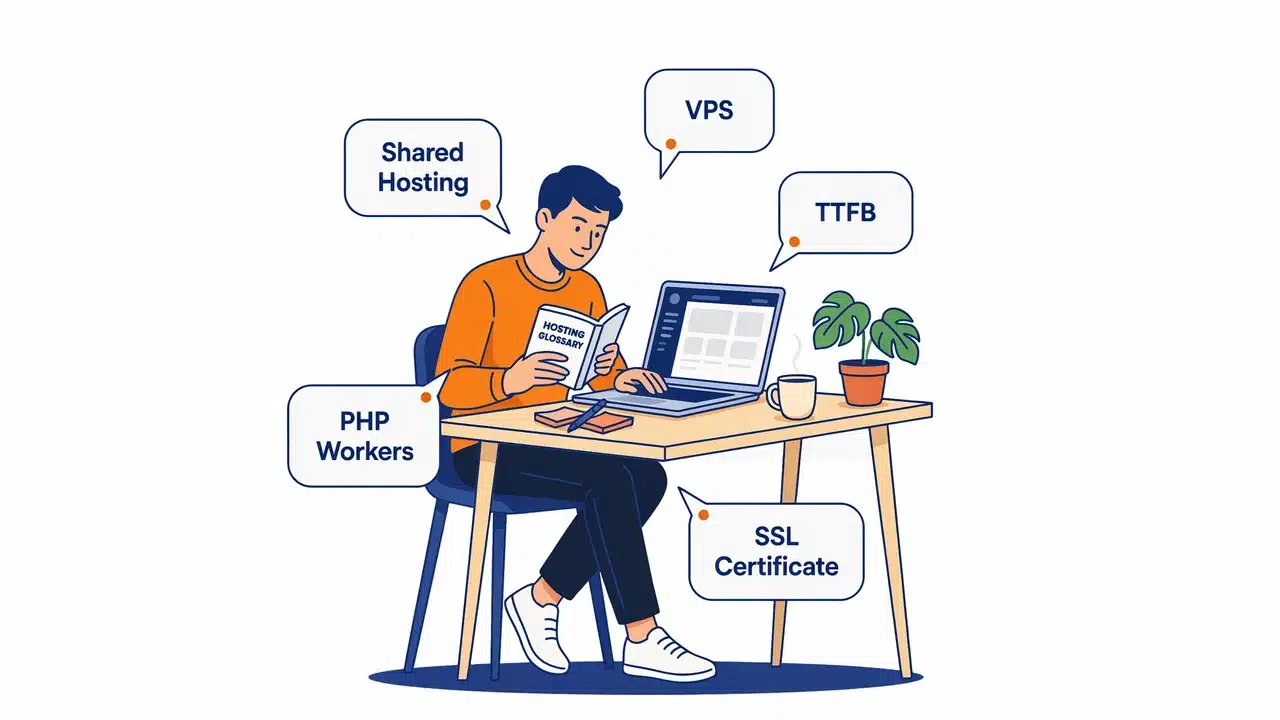
WordPress hosting terms describe the technical specs, server types, and infrastructure features that determine how your site performs, stays secure, and handles traffic. The six most important terms to understand before choosing any hosting plan are: shared vs. managed hosting, uptime SLA, PHP workers, server-side caching, SSL certificate, and TTFB. Master those six and you’ll be able to evaluate any hosting plan without getting fooled by marketing language.
- WordPress 6.5+ requires PHP 8.1, 8.2, or 8.3 — PHP 8.1 is roughly 20–40% faster than PHP 7.4 for WordPress workloads.
- A 99.9% uptime SLA allows up to 8.7 hours of downtime per year; 99.99% drops that to under one hour annually.
- NVMe SSD storage can be up to 7x faster than older SATA SSD drives, directly reducing WordPress TTFB and database query times.
- Google targets a TTFB under 200ms as part of its Core Web Vitals assessment — slow server response hurts SEO regardless of other optimizations.
- Managed WordPress hosting from providers like Kinsta, WP Engine, or SiteGround typically starts at $20–$35/month and delivers measurably better performance than shared plans at $2–$3/month.
- Redis object caching stores database query results in RAM — essential for WooCommerce stores, membership sites, and any WordPress site with logged-in users who bypass page cache.
This WordPress hosting glossary explains all 40 essential hosting terms in plain English, so you can choose the right plan, talk to support like a pro, and stop making expensive mistakes based on specs you don’t fully understand. New to WordPress hosting entirely? Start with our complete beginner’s guide to WordPress hosting before diving into this glossary.
WordPress is open-source CMS software that requires a hosting environment running PHP and a MySQL or MariaDB database. Every hosting provider packages those requirements differently — and the terminology they use to describe their plans is where most site owners get completely lost. This glossary fixes that.
WordPress Version: 6.5+ (current as of 2026)
Recommended PHP: PHP 8.1, 8.2, or 8.3
Minimum PHP: PHP 7.4 (not recommended — security risk)
Database: MySQL 8.0+ or MariaDB 10.6+
HTTPS / SSL: Required — confirmed Google ranking signal
WooCommerce PHP: PHP 8.1+ strongly recommended
Why Understanding Hosting Terms Matters for Your WordPress Site
Most people choose hosting based on price alone. That’s a mistake that costs site owners real money down the road. Your hosting directly affects three things that matter most: speed, security, and reliability. A host that looks cheap on the surface might throttle your PHP workers, skip server-level caching, or leave you exposed to DDoS attacks. You won’t know any of this unless you understand what those terms mean.
Knowing the language also helps when something breaks. When your host’s support team says “your inode limit is maxed out” or “your PHP version isn’t compatible,” you need to understand what that means — and whether it’s time to upgrade or switch to a better host entirely.
The right hosting plan is the single most impactful technical decision you’ll make for a WordPress site. Speed, security, SEO performance, and stability all start at the server level — before any plugin or theme enters the picture.
💻 Server & Hosting Type Terms
The foundation of every hosting decision — what kind of server environment your WordPress site actually runs on.
1. Shared Hosting
Shared hosting puts your WordPress site on the same physical server as hundreds — sometimes thousands — of other websites. You all share the same CPU, RAM, and bandwidth pool.
2. VPS Hosting (Virtual Private Server)
A VPS gives you a dedicated slice of a physical server. Even though multiple VPS accounts share one machine, each one has its own guaranteed allocation of RAM, CPU, and storage — so the bad neighbor effect doesn’t apply.
3. Dedicated Server
A dedicated server means the entire physical machine is yours — no sharing at all. You get full root access and maximum resources.
4. Managed WordPress Hosting
Managed WordPress hosting is an environment specifically configured and optimized for WordPress. The host handles updates, security, backups, caching, and server configuration for you.
When comparing managed WordPress hosts, look specifically at PHP worker counts, server-side caching technology, and whether staging is included. Those three specs tell you more about real-world performance than any marketing headline.
5. Cloud Hosting
Cloud hosting runs your WordPress site across a network of interconnected virtual servers rather than a single physical machine. Resources scale up or down based on demand — automatically.
6. Reseller Hosting
Reseller hosting lets you purchase hosting resources in bulk and sell individual accounts to clients under your own brand, managed through WHM (Web Host Manager).
7. WooCommerce Hosting
WooCommerce hosting is a managed environment tuned specifically for WooCommerce stores — with better database optimization, PCI-compliant infrastructure, and scaling for product catalog and checkout traffic.
8. Unmanaged Hosting
Unmanaged hosting gives you a raw server with no setup, configuration, or WordPress support. You handle everything — updates, security, software installation, and troubleshooting.
9. Edge Hosting 2026
Edge hosting deploys your WordPress site — or parts of it — on servers physically located as close as possible to each visitor, reducing latency dramatically for global audiences.
10. Containerized Hosting 2026
Containerized hosting uses technology like Docker to run each WordPress site in its own isolated software container — including PHP, the web server, and all dependencies.
⚡ Performance & Speed Terms
What “fast hosting” actually means at the server level — and which specs to check before signing up.
Based on typical measured performance across hosting tiers. Your results will vary by plan tier and server location.
| Hosting Type | Typical TTFB | Best For |
|---|---|---|
| Shared Hosting | 800ms – 1,500ms | New blogs, low traffic |
| VPS Hosting | 300ms – 600ms | Growing sites, developers |
| Managed WP (Starter) | 100ms – 250ms | Business sites, blogs |
| Managed WP (Pro) | 80ms – 150ms | High-traffic sites, agencies |
| Cloud + CDN | 50ms – 120ms | Global audiences |
11. Uptime / SLA (Service Level Agreement)
Uptime is the percentage of time your website is accessible to visitors. An SLA is your host’s written commitment to a minimum uptime percentage — typically 99.9% or 99.99%.
12. Bandwidth
Bandwidth is the total amount of data your hosting plan allows to be transferred between your server and your visitors each month.
13. PHP Workers
PHP workers are the server processes that handle dynamic requests on your WordPress site. Every time a visitor loads a page that isn’t cached, a PHP worker processes that request. Your plan has a maximum number of PHP workers running simultaneously.
Good server-side caching dramatically reduces how often your PHP workers get called. A well-cached site can serve thousands of visitors with just 2 PHP workers. A poorly cached site will hit that ceiling at a fraction of the traffic.
14. TTFB (Time to First Byte)
TTFB measures how long it takes for a visitor’s browser to receive the very first byte of data from your server after making a request. It’s measured in milliseconds.
15. Server-Side Caching
Server-side caching stores pre-built versions of your WordPress pages on the server. Instead of rebuilding the page from scratch for every visitor, the server delivers the cached HTML version — which is dramatically faster.
16. CDN (Content Delivery Network)
A CDN is a global network of servers that stores copies of your site’s static files — images, CSS, JavaScript — and delivers them from whichever server location is closest to each individual visitor.
17. NVMe SSD Storage 2026
NVMe (Non-Volatile Memory Express) SSD is the latest generation of solid-state storage used in hosting servers. It connects directly to the server’s CPU via PCIe — making it significantly faster than older SATA SSD storage.
18. LiteSpeed Web Server
LiteSpeed is a web server software alternative to the traditional Apache server, engineered for high performance under heavy WordPress traffic loads.
19. HTTP/3 2026
HTTP/3 is the latest version of the Hypertext Transfer Protocol — built on the QUIC protocol for faster, more reliable connections between browsers and servers.
20. Core Web Vitals (Hosting Impact)
Core Web Vitals are Google’s three UX metrics: LCP (Largest Contentful Paint), INP (Interaction to Next Paint), and CLS (Cumulative Layout Shift). Your hosting directly affects LCP and INP — the two most server-dependent metrics.
21. Object Caching (Redis / Memcached)
Object caching stores the results of complex database queries in RAM so WordPress doesn’t have to run the same expensive query repeatedly. Redis and Memcached are the two most widely used object caching systems for WordPress.
22. PHP Version
PHP is the server-side programming language that powers WordPress. Every hosting plan runs a specific PHP version, and newer versions deliver significant speed improvements and security patches over older releases.
🔒 Security & Infrastructure Terms
Your first line of defense starts at the server level — before WordPress, before plugins, before anything else.
23. SSL Certificate / HTTPS
An SSL certificate encrypts the data transferred between your visitors’ browsers and your server. Sites with SSL display “HTTPS” in the address bar and the padlock icon in all modern browsers.
24. WAF (Web Application Firewall)
A WAF is a security layer that monitors and filters HTTP traffic coming into your WordPress site, blocking common attacks — SQL injections, cross-site scripting (XSS), and malicious bots — before they reach WordPress.
25. DDoS Protection
A DDoS (Distributed Denial of Service) attack floods your server with fake traffic from thousands of sources simultaneously — overwhelming it until it crashes or becomes unreachable for real visitors.
26. Two-Factor Authentication (2FA)
2FA adds a second verification step to your hosting control panel login — typically a time-sensitive code sent to your phone or generated by an authenticator app like Google Authenticator or Authy.
27. Malware Scanning (Server-Level)
Server-level malware scanning automatically scans your WordPress files for malicious code, backdoors, and infected files at the server layer — not through a WordPress plugin.
28. IP Address (Shared vs. Dedicated)
Your server’s IP address is its unique numerical identifier on the internet. On shared hosting, hundreds of sites share a single IP address. A dedicated IP gives your site its own unique numerical address.
29. Inode Limit
An inode represents a single file or directory stored on your hosting account. Hosting providers set a maximum inode count per account — once you hit it, you can’t create new files, which can effectively crash your site.
30. PCI Compliance (for WooCommerce)
PCI DSS (Payment Card Industry Data Security Standard) compliance is a set of security requirements for any website that handles credit card payments directly or through a payment gateway.
31. SSH Access
SSH (Secure Shell) is a protocol that lets you securely connect to and control your server through a command-line terminal. It’s encrypted end-to-end — unlike plain FTP.
🌎 DNS, Domains & Technical Terms
How your domain connects to your hosting — and the technical settings that control everything in between.
32. DNS (Domain Name System)
DNS is the system that translates human-readable domain names (like wpessentialshub.com) into the numerical IP addresses that servers use to communicate with each other.
33. A Record
An A (Address) record is a DNS record that maps your domain name directly to a specific IPv4 address — the numerical IP of your hosting server.
34. CNAME Record
A CNAME (Canonical Name) record maps one domain name to another domain name — rather than to an IP address directly.
35. Nameservers
Nameservers tell the internet which DNS provider is responsible for a domain’s records. They are the first stop in the DNS lookup chain whenever someone tries to reach your site.
36. Staging Environment
A staging environment is a private, non-public copy of your WordPress site that runs separately from your live site. You test changes on staging first, then push them live only after confirming everything works correctly.
Always test major WordPress core updates, plugin updates, and theme changes on a staging environment first — especially before peak traffic periods like product launches or holiday sales. This single habit prevents the vast majority of WordPress site outages.
37. cPanel / Control Panel
cPanel is the most widely used web hosting control panel. It provides a graphical interface for managing your hosting account — file manager, databases, email accounts, DNS settings, SSL certificates, and more.
38. FTP / SFTP
FTP (File Transfer Protocol) and SFTP (Secure File Transfer Protocol) are methods for transferring files between your computer and your hosting server. SFTP encrypts the connection; standard FTP does not.
39. MySQL / MariaDB Database
MySQL and MariaDB are relational database systems that store all of your WordPress content — posts, pages, settings, users, comments, and plugin data. Every WordPress installation requires one database to function.
40. WordPress Multisite
WordPress Multisite is a built-in WordPress feature that lets you run a network of multiple WordPress sites from a single installation — all sharing the same WordPress core, but with separate themes, plugins, and content.
📋 Quick-Reference Glossary Table
All 40 terms at a glance. Bookmark this table for fast reference when evaluating hosting plans.
| # | Term | Category | One-Line Definition |
|---|---|---|---|
| 1 | Shared Hosting | Server | Multiple sites share one server’s resources |
| 2 | VPS Hosting | Server | Dedicated slice of a server with guaranteed resources |
| 3 | Dedicated Server | Server | An entire physical server exclusively for your site |
| 4 | Managed WordPress Hosting | Server | WordPress-optimized hosting with management included |
| 5 | Cloud Hosting | Server | Site runs across multiple servers for auto-scaling |
| 6 | Reseller Hosting | Server | Buy hosting in bulk and resell to clients |
| 7 | WooCommerce Hosting | Server | Hosting tuned for WooCommerce performance |
| 8 | Unmanaged Hosting | Server | Raw server with no WordPress support or configuration |
| 9 | Edge Hosting | Server | Content served from servers nearest your visitors |
| 10 | Containerized Hosting | Server | Each site runs in its own isolated software container |
| 11 | Uptime / SLA | Performance | Percentage of time your site is live and accessible |
| 12 | Bandwidth | Performance | Monthly data transfer allowance between server and visitors |
| 13 | PHP Workers | Performance | Processes that handle dynamic WordPress page requests |
| 14 | TTFB | Performance | Time for your server to send its first byte of data |
| 15 | Server-Side Caching | Performance | Pre-built pages served without hitting PHP or database |
| 16 | CDN | Performance | Global network delivering static files from nearby servers |
| 17 | NVMe SSD | Performance | Fastest generation of SSD storage for hosting servers |
| 18 | LiteSpeed Web Server | Performance | High-performance Apache alternative for WordPress hosts |
| 19 | HTTP/3 | Performance | Latest protocol for faster browser-server connections |
| 20 | Core Web Vitals | Performance | Google’s UX metrics; hosting directly affects LCP and INP |
| 21 | Object Caching (Redis) | Performance | RAM-based caching of database query results |
| 22 | PHP Version | Performance | Server-side language version running your WordPress site |
| 23 | SSL Certificate | Security | Encrypts data between visitor and server; enables HTTPS |
| 24 | WAF | Security | Firewall blocking malicious traffic before it hits WordPress |
| 25 | DDoS Protection | Security | Defense against traffic flood attacks that take sites offline |
| 26 | 2FA | Security | Second login verification step for your hosting control panel |
| 27 | Malware Scanning | Security | Automated server-level scanning for infected WordPress files |
| 28 | IP Address | Security | Shared vs. dedicated server identifier for your site |
| 29 | Inode Limit | Security | Max number of files/directories allowed on your account |
| 30 | PCI Compliance | Security | Payment security standard required for WooCommerce stores |
| 31 | SSH Access | Security | Secure command-line access to your hosting server |
| 32 | DNS | DNS/Technical | Translates domain names to server IP addresses |
| 33 | A Record | DNS/Technical | DNS record mapping your domain to a server IP address |
| 34 | CNAME Record | DNS/Technical | DNS record mapping one domain name to another |
| 35 | Nameservers | DNS/Technical | Tell the internet which DNS provider manages your domain |
| 36 | Staging Environment | DNS/Technical | Private copy of your site for safe testing before going live |
| 37 | cPanel | DNS/Technical | Web-based interface for managing your hosting account |
| 38 | FTP / SFTP | DNS/Technical | File transfer method between your computer and server |
| 39 | MySQL / MariaDB | DNS/Technical | Database system that stores all WordPress content |
| 40 | WordPress Multisite | DNS/Technical | Single WordPress install running a network of multiple sites |
Where to Start with WordPress Hosting Terms
Forty terms is a lot to absorb at once. Start with shared vs. managed hosting, uptime SLA, SSL certificate, and server-side caching. Once those four click, move on to PHP version, PHP workers, TTFB, WAF, and CDN. Those nine terms will help you evaluate any hosting plan like an expert — not just by price.
💡 Key Takeaways
- PHP 8.1+ is required for optimal WordPress and WooCommerce performance in 2026 — always verify your host supports it.
- Managed WordPress hosting costs more upfront but saves money long-term through better uptime, faster performance, and included security.
- Server-side caching is the single most impactful performance upgrade for any WordPress site — and it’s host-dependent, not plugin-dependent.
- Never use plain FTP. Always SFTP. Enable 2FA on your hosting control panel immediately after signup.
- Before choosing any host, check: PHP version options, PHP worker limits, staging environment availability, and uptime SLA terms.
Perfect Fit
This glossary is written for site owners choosing their first or second hosting plan. Every term is explained without assumed technical knowledge.
Perfect Fit
Terms like PCI compliance, object caching, PHP workers, and WooCommerce hosting are essential reading before choosing infrastructure for a store.
Good Fit
Useful for explaining hosting choices to clients or evaluating reseller and managed hosting plans for a growing client portfolio.
| Resource | Best For | Type |
|---|---|---|
| What Is WordPress Hosting? Beginner’s Guide | Understanding hosting from scratch | Beginner Guide |
| Shared vs VPS vs Dedicated vs Managed Hosting | Choosing the right hosting tier | Comparison Guide |
| Best WordPress Hosting for Beginners | Choosing your first managed host | Buying Guide |
| Best Managed WordPress Hosting | Performance-focused hosting for serious sites | Best-Of |
| Best WordPress Security Plugins | Adding plugin-level security on top of your host | Best-Of |
| Best WordPress Caching Plugins | Adding page caching on shared hosting | Best-Of |
* We may earn a commission at no extra cost to you if you purchase through our links.
Every term in this glossary was verified against official documentation from WordPress.org, Google’s web.dev Core Web Vitals reference, WooCommerce’s server environment documentation, and direct testing across multiple managed and shared WordPress hosting platforms. Pricing references were verified in June 2026 and should be confirmed on each provider’s official website before purchasing.
Frequently Asked Questions
What WordPress hosting terms should I know before choosing a plan?
What is the difference between shared and managed WordPress hosting?
What PHP version does WordPress require in 2026?
What does uptime mean in web hosting, and what’s a good uptime guarantee?
What is a CDN and do I need one for my WordPress site?
What is a staging environment and why does it matter?
What is TTFB and why does it matter for WordPress SEO?
What is NVMe storage and is it better than regular SSD hosting?
Do I need Redis object caching for my WordPress site?
WP Essentials Hub — Your Complete WordPress Essentials Hub
I’m Shamim Sarker, the founder and lead reviewer at WP Essentials Hub — a dedicated WordPress toolkit review site where I help website owners, bloggers, and developers find the right tools to build, grow, and secure their WordPress sites.
With 8+ years of hands-on WordPress experience, I’ve personally built, tested, and troubleshot hundreds of websites. I cover themes, page builders, plugins, hosting, domains, coupons, and deals — all tested on live WordPress sites with my own money. No paid placements. No vendor influence. Just real testing and real results.