How to Choose the Right WordPress Theme in 2026: The Complete Buying Guide

Choose a WordPress theme by matching it to your site’s purpose first, not its looks. Then run a 15-minute staging-site speed test to check performance, mobile responsiveness, SEO-friendly code, and update history before you commit, since demo speed almost never matches real-world performance.
- Run a 15-minute staging-site test with your real plugin stack before buying any theme — demo speed is not real-world speed.
- In our testing, a theme that “looked” fine added over a full second to Largest Contentful Paint (2.9s vs. 1.8s baseline) and doubled total page size (1.9 MB vs. 850 KB).
- Block themes (built for Full Site Editing) suit lightweight, straightforward sites; classic themes still win for complex layouts paired with a page builder like Elementor or Bricks.
- Premium themes typically run $30–$200 per year, with popular options like Astra, GeneratePress, and Kadence landing around $60.
- Always edit theme code through a child theme — direct edits to a parent theme get wiped out on the next update.
What to Look For When Choosing a WordPress Theme
What Is Your Website’s Purpose?
Picking a theme based on looks alone is the fastest way to end up with a slow, hard-to-customize site. Before you look at a single theme, answer one question: what is this website actually for?
A blog needs clean typography and generous white space so people can actually read your posts. An online store needs solid WooCommerce compatibility and product-page layouts that convert. A portfolio needs gallery features and image-heavy templates. A business site needs a professional, minimal layout with clear calls to action.
Should You Choose a Block Theme or a Classic Theme?
This is where a lot of guides gloss over an important 2026 decision: block theme or classic theme?
Block themes are built for WordPress’s Full Site Editing (FSE) system. With a block theme, you edit your entire site — headers, footers, templates, navigation — using the same block editor you already use to write posts. Design settings like colors, fonts, and spacing live in one central file, so you can change your whole site’s look from a single screen.
Classic themes work differently. They rely on the Customizer or a separate page builder plugin like Elementor or Beaver Builder for layout control. If you’re already using a page builder and don’t want to relearn your workflow, a classic theme paired with that builder is often the smoother choice.
How Do You Test a Theme Before Committing?
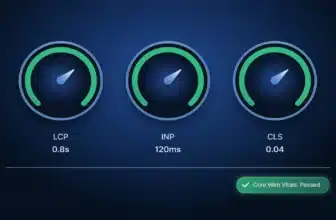
Screenshots and demo sites lie. A theme can look flawless in a preview and still tank your Core Web Vitals once it’s running on your actual server with your actual plugins. Here’s the test we run on every theme before recommending it.
Spin Up a Staging Site
Use a tool like WP Staging or Local by Flywheel so you’re not testing on your live domain.
Install the Theme With Your Typical Plugin Stack
Add your page builder, SEO plugin, and any forms plugin you’d actually use.
Run a Core Web Vitals Check
Use Google’s PageSpeed Insights on a couple of key pages — homepage and a typical post or product page.
Disable the Theme and Switch to a Default WordPress Theme
Run the same test again for a baseline comparison.
Compare the Numbers
If your target theme adds more than a second of load time or tanks your Largest Contentful Paint score, that’s a real red flag.
| Metric | Default Theme | Theme Being Tested |
|---|---|---|
| Largest Contentful Paint | 1.8s | 2.9s |
| Time to Interactive | 2.1s | 3.4s |
| Total Page Size | 850 KB | 1.9 MB |
A gap like this doesn’t automatically disqualify a theme, but it tells you exactly what you’re trading for that design. If you want a deeper dive into what’s driving those numbers, we’ve broken down how WordPress themes affect site speed and Core Web Vitals in a separate guide.
Every theme we recommend goes through this same 15-minute staging comparison, plus 14–30 days of live-site monitoring with a real plugin stack, before it earns a spot on our roundups.
Six Non-Negotiable Factors to Evaluate
Once you’ve narrowed your list, run every remaining candidate through these six checks.
Not sure whether to spend money on this yet? Our free vs. premium WordPress themes guide breaks down when a free theme is genuinely enough. Prefer to start free? Browse free themes on WordPress.org.
Quick Recap: The 6-Factor Theme Checklist
| Responsiveness | Test the demo on mobile — menus, images, and text scale correctly |
|---|---|
| Loading speed | Run the 15-minute staging test and compare Core Web Vitals |
| SEO compatibility | Clean code, proper heading structure, minimal bloat |
| Customization flexibility | Change colors, fonts, and layout without touching code |
| Ongoing support & updates | Recent changelog entries, active developer support |
| Accessibility | Color contrast, keyboard navigation, proper heading order |
Avoid Theme Bloat and Renewal Price Traps
“Theme bloat” gets mentioned constantly, but rarely explained. In practice, bloat means extra CSS and JavaScript files loading on every page — even for features you’re not using. It also means shortcodes and custom post types that stay behind in your database if you ever switch themes, leaving orphaned code cluttering your site.
Pricing traps are just as common. Many premium themes advertise a low first-year price, then jump significantly on renewal. Before you buy, check the renewal price listed in the theme’s terms — not just the checkout total.
Set up a child theme on day one. If you ever plan to edit your theme’s code directly — even small CSS tweaks — do it through a child theme, not the parent theme’s files. Direct edits get wiped out the next time the theme updates, and a child theme protects your customizations while still letting you receive security patches.
Free vs. Premium Themes — Which Fits Your Budget?
Free themes aren’t automatically worse, and premium themes aren’t automatically better. It depends on what you need.
| Factor | Free Themes | Premium Themes |
|---|---|---|
| Cost | $0 | Typically $30–$200/year |
| Support | Community forums only | Direct developer support |
| Update frequency | Varies widely | Usually consistent |
| Features | Basic, extendable via plugins | Built-in customization options |
| Best for | Simple sites, tight budgets | Business sites, ecommerce, custom branding |
If you’re just starting out, a well-reviewed free theme from the WordPress.org directory is a completely reasonable choice — it’s been through an approval process, so baseline quality is checked. As your site grows, upgrading to a premium theme like Astra, GeneratePress, or Kadence gives you more built-in flexibility without needing extra plugins.
Perfect Fit for Free Themes
Comfortable adding a page builder or extra plugins to fill in missing features.
Skip Free Themes
Running a store, needing guaranteed developer support, or wanting advanced customization without stacking plugins calls for a premium theme.
We cover all three in more depth, including where each one falls short, in our full beginner’s guide to WordPress themes.
Special Considerations for WooCommerce Stores
If you’re building a store, your theme checklist looks different from a blog or portfolio site.
Confirm the theme is actively tested against the current version of WooCommerce — not just “compatible” in a general sense from two years ago. Check that product grids, cart pages, and checkout flows are included in the demo, not just the homepage.
Check the official WooCommerce theme design guidelines before committing, especially if you’re evaluating a theme that isn’t purpose-built for ecommerce.
Our Top Picks for 2026
Astra
Lightweight, block-theme-ready, and one of the fastest-loading options available — a strong all-around pick for blogs, business sites, and WooCommerce stores alike.
GeneratePress
Minimal code footprint and deep customization hooks make this a favorite among developers who want full control without the bloat.
Kadence
A strong middle ground between design flexibility and performance, with built-in WooCommerce styling that saves setup time.
Blocksy
Built from the ground up for Full Site Editing, Blocksy pairs cleanly with the native block editor and stays noticeably fast even as you add custom headers, footers, and dynamic content.
Neve
The fastest theme to get a basic site live. Setup takes minutes, the options panel stays simple, and it’s a solid fit for small businesses or anyone who doesn’t want to fight a settings screen.
OceanWP
Years of real-world use back this one up. Its free version ships with more built-in flexibility than most competitors’ paid tiers, making it a dependable pick if you want room to grow without upgrading right away.
Twenty Twenty-Five
WordPress’s own default theme and a genuinely capable choice, not just a placeholder. Fully block-based with no jQuery or extra scripts loaded by default, it’s the cleanest starting point if you’d rather avoid third-party themes altogether.
Divi
One of the best-known premium themes on the market, built around its own drag-and-drop visual builder. Best for site owners who want full design control without touching code, backed by a massive template library.
- Match the theme to your site’s purpose before you look at design.
- Decide between a block theme and a classic theme based on how you like to build.
- Always run the 15-minute staging test before committing to a theme.
- Check the six non-negotiable factors: speed, responsiveness, SEO, flexibility, support, and accessibility.
- Set up a child theme before making any code edits.
Bottom Line: The right WordPress theme starts with your site’s purpose, not its looks. Decide between a block theme and a classic theme based on how you like to build, run the 15-minute staging test before committing, and check the six non-negotiable factors — speed, responsiveness, SEO, flexibility, support, and accessibility. Skip the theme that just looks good in a demo. Test it, compare the numbers, and pick the one that actually performs on your site.
Frequently Asked Questions
What is the difference between a WordPress theme and a plugin?
Can I switch WordPress themes without losing my content?
Do I need a page builder if I choose a block theme?
How much should I expect to pay for a good WordPress theme?
What’s the best WordPress theme for beginners?
How do I know if a theme will slow down my site?
Do I need a child theme?
WP Essentials Hub — Your Complete WordPress Essentials Hub
I’m Shamim Sarker, the founder and lead reviewer at WP Essentials Hub — a dedicated WordPress toolkit review site where I help website owners, bloggers, and developers find the right tools to build, grow, and secure their WordPress sites.
With 8+ years of hands-on WordPress experience, I’ve personally built, tested, and troubleshot hundreds of websites. I cover themes, page builders, plugins, hosting, domains, coupons, and deals — all tested on live WordPress sites with my own money. No paid placements. No vendor influence. Just real testing and real results.