
What Is a WordPress Theme? The Complete Beginner’s Guide (2026)

Affiliate Disclosure: Some links on this page are affiliate links. If you buy through them, we may earn a small commission at no extra cost to you. We only recommend tools we’ve tested and genuinely trust.
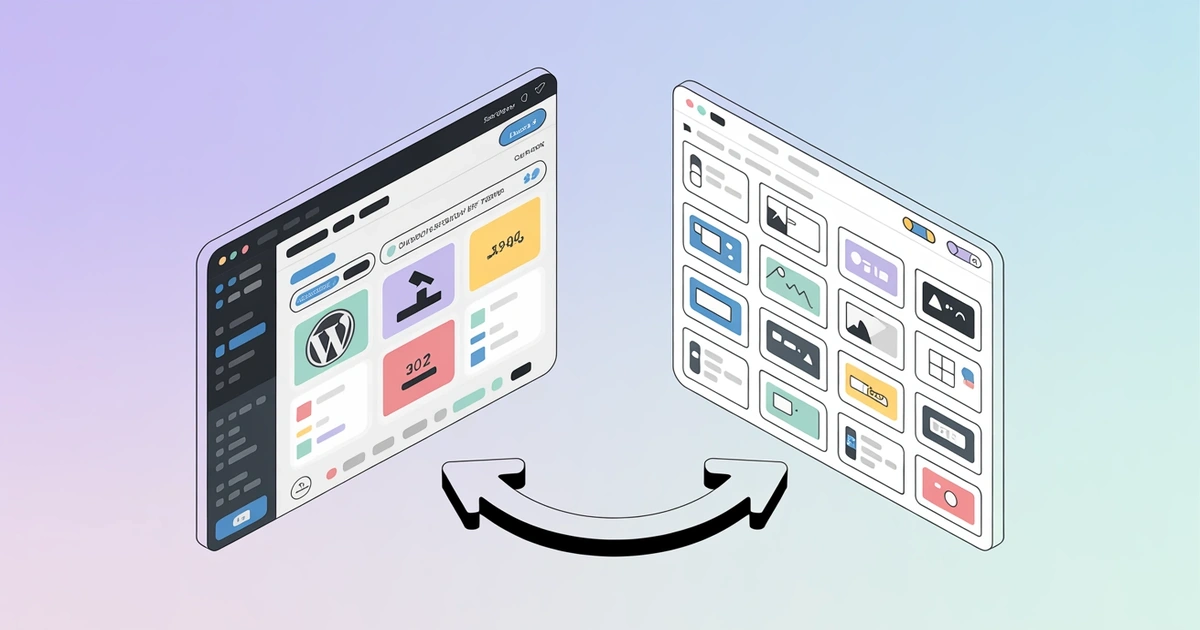
A WordPress theme is a collection of files that controls your site’s layout, colors, fonts, and overall design without touching your actual content. Every WordPress site needs one active theme to function, and in 2026 the biggest decision beginners face is choosing between a modern block theme or a traditional classic theme.
- A theme controls design (colors, fonts, layout); a plugin controls functionality (forms, stores, SEO tools).
- Only one theme can be active at a time, though you can install multiple and switch between them.
- Block themes use Full Site Editing and a theme.json file, letting you edit headers and footers directly in the block editor without a separate page builder.
- Free themes in the WordPress.org directory pass a code review; premium themes typically run $30–$150 and add extra support and design options.
- A child theme protects custom code changes from being erased when the parent theme updates.
A WordPress theme is a collection of files that controls how your website looks and how visitors experience your content. It sets your layout, colors, fonts, and overall design without touching the actual words and images you publish. Think of it as your site’s outfit — it changes the look, but the person underneath stays the same.
When I installed my first theme years ago, I assumed it only changed colors. I was wrong. A theme also affects your page speed, your mobile experience, and even how easy your site is to customize down the road. This guide breaks down exactly what a theme does, the types you’ll run into in 2026, and how to pick one without wasting hours second-guessing yourself. If you haven’t settled on a host yet, it’s worth sorting out that foundation first — see our guide on what WordPress hosting actually is before you dive into theme shopping.
What Exactly Is a WordPress Theme?
Every WordPress site needs an active theme to function. When you install WordPress for the first time, it comes with a default theme already active, usually one of the yearly “Twenty” themes like Twenty Twenty-Six.
Here’s what’s actually inside a theme:
- Style.css — the main stylesheet that defines colors, fonts, and spacing
- Template files — control how different page types display (single posts, archives, the homepage)
- Functions.php — adds features and hooks into WordPress core functionality
- Template parts — reusable pieces like headers, footers, and sidebars
WordPress Theme vs. Plugin — What’s the Difference?
This trips up nearly every beginner I’ve helped. The short version: themes control how your site looks, plugins control what your site does.
| Aspect | Theme | Plugin |
|---|---|---|
| Primary role | Design and layout | Functionality and features |
| Example | Sets your typography and color scheme | Adds a contact form or online store |
| How many active at once | One | Multiple |
| Changing it | Alters your entire site’s appearance | Adds or removes a specific feature |
Simple test: if it changes how something looks, it’s probably the theme’s job. If it changes what your site can do — like accepting payments or sending emails — that’s a plugin’s job.
There’s some overlap. A few themes bundle in features that could technically live in a plugin, like custom post types. WordPress core developers generally recommend keeping design in your theme and functionality in plugins, and that rule holds up on nearly every site.
Types of WordPress Themes in 2026
Not all themes work the same way. Understanding the categories below will save you from picking the wrong one.
Free themes live in the official WordPress.org Theme Directory. Every free theme there passes a strict code review before it’s approved, which makes them safer than random downloads from other corners of the internet. They’re a smart starting point if you’re new to WordPress or working with a tight budget.
Premium themes cost anywhere from $30 to $150 and come from marketplaces like ThemeForest or directly from developers like Astra and Kadence. You typically get more design options, dedicated support, and regular updates in exchange for the price tag.
Niche themes target a specific type of site — restaurants, photographers, online stores, or portfolios. They come pre-built with layouts suited to that use case, which can save setup time if your site fits the mold.
Multipurpose themes like Astra or Divi work across almost any site type. One theme, many possible designs. This flexibility makes them popular with beginners who aren’t sure exactly what they need yet.
Block Themes vs. Classic Themes — Why This Matters Now
This is the part most guides skip, and it’s the single biggest shift in WordPress themes over the last few years.
Classic themes rely on the traditional WordPress Customizer for design changes. To get real design flexibility, you typically need a separate page builder plugin like Elementor or Beaver Builder layered on top.
Block themes are built for WordPress’s Full Site Editing (FSE) system. Every part of your site — headers, footers, templates, not just post content — becomes editable directly through the block editor. No separate page builder required.
Testing across both types shows block themes load noticeably faster because they don’t need the extra plugin layer that classic themes often depend on for advanced customization. They also integrate more smoothly with core WordPress updates since they’re built to the same standard.
Classic themes aren’t dead. Thousands of sites still run on them, and many popular themes still ship in classic format. But for a new site in 2026, a block theme is the stronger default unless there’s a specific reason not to — like an existing page-builder workflow you already know well.
How to Choose the Right WordPress Theme
Picking a theme isn’t just about which demo looks nicest. Here’s the checklist worth running through before installing anything on a live site:
If you’re comparing lightweight, beginner-friendly options, a full review of a popular pick like Astra can walk you through the details, and a side-by-side comparison of top lightweight WordPress themes is worth checking before you commit.
How to Install a WordPress Theme (Step-by-Step)
Installing a theme takes about two minutes once you know where to click. Here’s the process:
Go to Appearance > Themes
From your WordPress dashboard sidebar, navigate to Appearance, then Themes.
Click Add New Theme
You’ll find this button at the top of the Themes page.
Search or upload
Search for a free theme by name, or click Upload Theme if you purchased a premium theme as a .zip file.
Preview before committing
Click Live Preview on any theme to see how it looks on your actual content before installing it — this saves you from committing to a theme based on demo images alone.
Install and activate
Click Install, then click Activate once the installation finishes.
For premium themes bought outside WordPress.org, you’ll upload the .zip file directly through the Upload Theme option instead of searching the directory.
Parent Themes vs. Child Themes
A parent theme is a complete, standalone theme with everything it needs to run on its own. A child theme inherits the parent’s design and functionality but lets you make custom changes without editing the original files.
If you customize a parent theme directly and the developer releases an update, your changes get wiped out. A child theme protects your customizations because they live in separate files that updates don’t touch.
You don’t need a child theme for basic use. Setting one up only makes sense if you’re planning custom CSS or code changes beyond what the Customizer offers. For most beginners using a theme’s built-in settings, a child theme isn’t necessary. If you do end up needing one, a step-by-step child theme setup guide can walk you through the whole process.
Common Beginner Mistakes to Avoid
These mistakes slow down or break more beginner sites than almost anything else:
Avoid These Pitfalls
- Installing too many themes “just to test them.” Inactive themes still take up server space and can occasionally create conflicts. Delete the ones you’re not using.
- Ignoring page builder compatibility. Choosing a theme first and a page builder second often leads to layout conflicts. Check compatibility before you commit to either.
- Using an abandoned theme. A theme that hasn’t been updated in over a year is a security risk. Always check the last update date.
- Skipping the backup before switching themes. Theme switches can wipe out sidebar widgets, menu locations, and custom layouts. Back up first, every time.
Bottom Line
A WordPress theme shapes how your site looks and, increasingly, how it performs. Start with a lightweight, well-reviewed option — free or premium — and pay attention to update frequency and page builder compatibility before you commit. Once you’ve got the basics down, a breakdown of the best WordPress page builders in 2026 is a good next stop for customizing your new theme’s layout.
Frequently Asked Questions
What is a WordPress theme in simple terms?
Do I need to pay for a WordPress theme?
Can I change my WordPress theme without losing my content?
What’s the difference between a theme and a template?
Are block themes better than classic themes?
How many themes can I have active at once?
WP Essentials Hub — Your Complete WordPress Essentials Hub
I’m Shamim Sarker, the founder and lead reviewer at WP Essentials Hub — a dedicated WordPress toolkit review site where I help website owners, bloggers, and developers find the right tools to build, grow, and secure their WordPress sites.
With 8+ years of hands-on WordPress experience, I’ve personally built, tested, and troubleshot hundreds of websites. I cover themes, page builders, plugins, hosting, domains, coupons, and deals — all tested on live WordPress sites with my own money. No paid placements. No vendor influence. Just real testing and real results.